Purpose
This article explains how to back up important files on a Windows computer using OneDrive. Once configured, backups run automatically in the background.
This ensures your files are protected in the event of device loss, damage, or replacement.
Background
Every summer the IT team reformats and reinstalls all of our computers so we start off fresh. While we work very hard to ensure that everyone gets the message that we are doing that and that they need to back up anything they desire to keep, there are invariably a few individuals surprised by this that lose all of their hard work. We do not enjoy when this happens and are trying everything we can to prevent it from happening.
What Is Backed Up
The following folders are backed up automatically:
Desktop
Documents
Pictures
These folders typically contain the majority of user-created files.
⚠️ This process backs up files only. It does not back up Windows itself or installed applications.
Step 1: Set Up OneDrive Backup
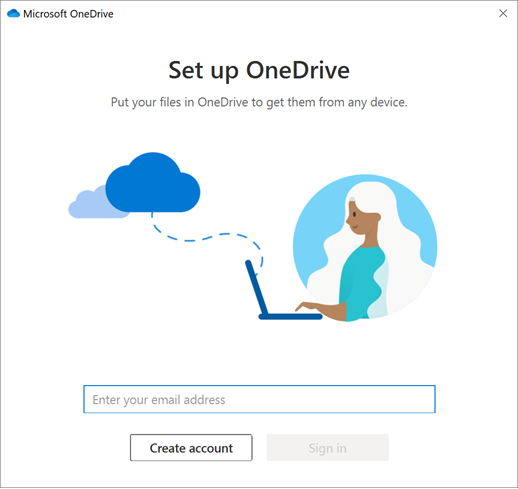
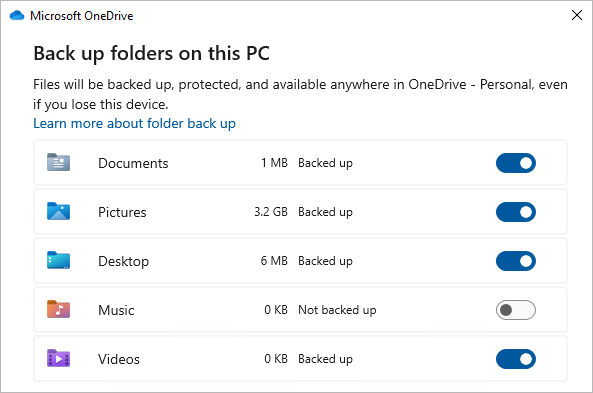
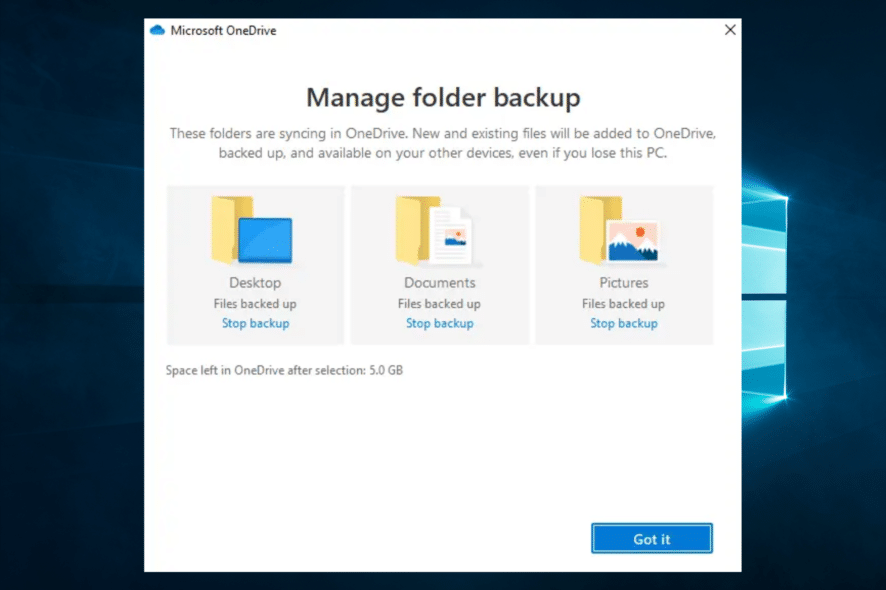
Click the OneDrive cloud icon in the bottom-right corner of your screen.
Sign in using your Microsoft account (work or personal).
Right-click the OneDrive icon and select Settings.
Go to Sync and backup.
Click Manage backup.
Turn on backup for:
Desktop
Documents
Pictures
Once enabled, OneDrive will automatically back up these folders.
Step 2: Automatic Backups (No Action Required)
After setup:
Files back up automatically when connected to the internet
Save files normally to Desktop or Documents
No manual uploads are required
You may occasionally see a syncing icon—this is normal.
Optional: Verify Your Backup
To confirm your backup is working:
Create a small test file on your Desktop.
Sign in to OneDrive using a web browser.
Confirm the file appears online.
If it does, your backup is working correctly.
Important Guidelines
Do not move or rename OneDrive folders.
Do not delete files unless you intend to remove them everywhere.
Do not attempt to back up system folders or applications.
If you see an error or warning message you do not understand, contact IT Support.
Summary
Your files are backed up securely using OneDrive
Backups occur automatically
No daily maintenance is required
This setup protects against accidental deletion, device failure, and data loss.
Need Help?
If you have questions or believe your files are not backing up correctly, please submit an IT support ticket.
Was this article helpful?
That’s Great!
Thank you for your feedback
Sorry! We couldn't be helpful
Thank you for your feedback
Feedback sent
We appreciate your effort and will try to fix the article